
How remote support works, step by step
A technician sees your screen through a program called TeamViewer QuickSupport and fixes the problem while you watch. Here is exactly what to download, what to click and what to tell us. It takes about two minutes.
1. Get TeamViewer QuickSupport for your device
These buttons open TeamViewer’s own download pages and the official app stores. Do not download it from anywhere else.
On iPhone and iPad we can see your screen and guide you. Apple does not allow anyone to control it remotely.
QuickSupport is the small version of TeamViewer for the person receiving help. No account and no license needed on your side.
2. Open it and give us your ID
Download QuickSupport
Use the button for your device above. On the TeamViewer page pick QuickSupport, the small version that needs no installation and no account. It is free for you.
Open it
Find the file in your Downloads folder and double-click it. Windows may ask “Do you want to allow this app?” Choose Yes. On a phone or tablet, tap Open in the store.
On a Mac: allow screen sharing
macOS asks for permission the first time. Open System Settings, Privacy & Security, and switch TeamViewer QuickSupport on under Screen Recording and Accessibility. Without it we see a blank screen.
Give us your ID
QuickSupport shows Your ID, a 9 or 10-digit number. Type it into the box on our page or read it to us on the phone. If it also shows a short one-time password, the technician will ask for it. We never need a password you made.
What happens during the session
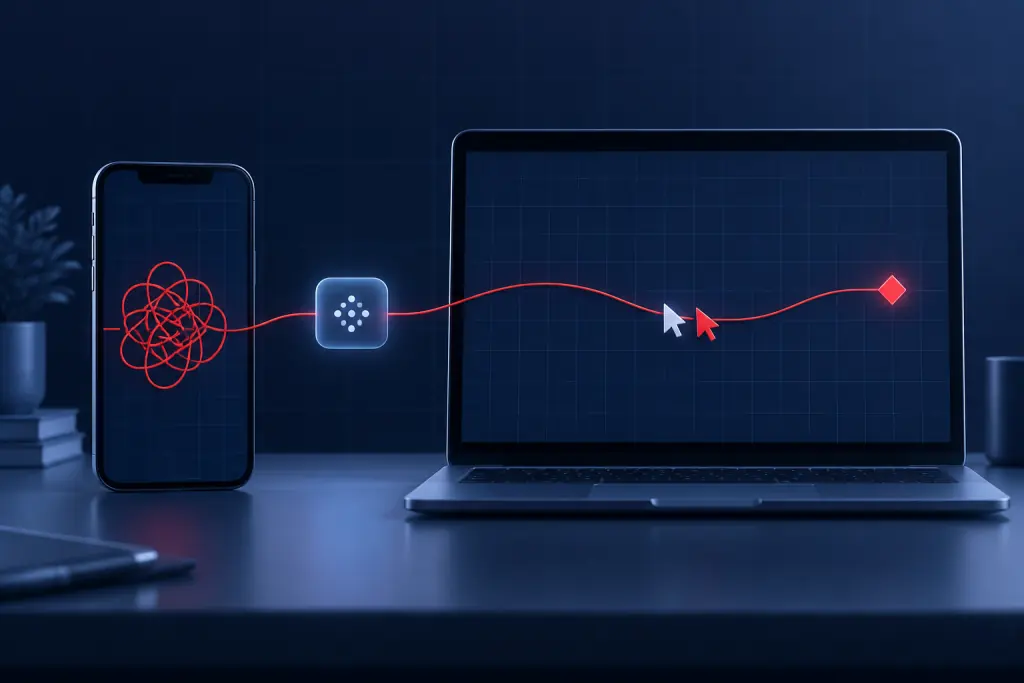
We are on the phone with you the whole time. You see the technician’s pointer move on your screen. We say what we are doing and why, and we ask before opening anything personal.
When a password is needed, you type it yourself. If you want to stop, close the TeamViewer window. QuickSupport does not stay running afterwards and gives no access once it is closed.
What you need
- A computer, tablet or phone that turns on
- A working internet connection. A phone hotspot can be enough
- A phone, so we can talk while we work
- About two minutes to download and open QuickSupport
What cannot be fixed remotely
A computer that will not turn on, a cracked screen, a failed drive or no internet at all. Call us anyway at (720) 222-0110: for business clients we make on-site visits by appointment, and for lost data there is our sister service Denver Data Recovery.
How to tell us from a scam
People looking for remote computer help are the favorite target of fake “tech support”. Here is how real help behaves, and what we will never do.
- We never call you first out of the blue. You contact us, then we call back from (720) 222-0110.
- You start the session. Nobody can connect until you open TeamViewer and give us your ID.
- You can end it any time by closing TeamViewer. QuickSupport only works while it is open.
- We never ask for gift cards, crypto or wire transfers. Anyone who does is a scammer.
- You always pay on this site through Stripe, by card, and you get a confirmation by email.
- You see everything we do on your own screen, and you type your own passwords.
Questions about TeamViewer
Is TeamViewer QuickSupport free for me?
Yes. The person receiving help does not need a TeamViewer account or license. You download QuickSupport from TeamViewer's own site or from the official app store.
Do I have to install anything permanently?
No. QuickSupport on Windows and Mac runs without a full installation and only works while its window is open. You can delete the file after the session.
Why does my Mac show a black or blank screen to the technician?
macOS blocks screen sharing until you allow it. Open System Settings, Privacy and Security, and turn TeamViewer QuickSupport on under Screen Recording and Accessibility. You can turn it off again afterwards.
Can you control my iPhone or iPad?
No. Apple only allows screen viewing on iPhone and iPad. We see what you see and guide you by voice. Android support depends on the phone maker.
What is the difference between the ID and the password?
The ID identifies your device for this session. Some versions of QuickSupport also show a short one-time password made by TeamViewer; the technician asks for it on the phone. Neither one is a password you created, and we never ask for those.
How do I end the session?
Close the TeamViewer window. The connection ends at once and cannot be reopened without you starting QuickSupport again.
Ready? Start a session.
(720) 222-0110Mon–Fri 8 AM–6 PM Mountain. For emergencies, call or buy a session any time and we answer as fast as we can.